தமிழில் தொழில்நுட்ப தகவல் தருவதே எமது நோக்கம்

Articles by "Computer tips"
3d game Airtel tips Ajith tips All in one App Android Application Android Application - WhatsApp Tricks Android hard reset tips Android tips Android tips and software Audio editing software AVG Antivirus 2016 Serial Key AVG Antivirus Antivirus 2016 Serial Key Backup app Battery life tips Best offline map Boot Animation Budget Smart phone Camera security app Charger tips Cinema news City racing 3d unlimited money apk Clash of clans Hack apk Computer tips Computer tips and software CPU testing apk Ekalapai keyboard Facebook like Facebook tips Facebook videos download new way Fingers print lock Free purchase Free Recharge Gadgets - Offers Zone Google indore map Hard Reset tips How to any Android mobile Unlock How to candy crush life lime Hack How to change ur operator How to create blog How to delete duplicate files permanent Android devices How to install Lollipop on pc How to know IMEI num How to root How to root Android device I phone tips IDM crack Live tamil Channel Low budget windows 10 lap Mobile details Mobile tips MobileAwareness Mx player pro New Mobile New WhatsApp Offer Omni Swipe One of the best Android mobile app One of the best Android Notification app One of the best Android photo editing App Otg என்றால் என்ன? Payum puli Movie Pen drive tips Photoshop Tutorial Playstore Application tips Ram increase tips RAR File tips Recovery app Root tips Samsung tips Secret code Smart app lock Subway surfers mod apk Sunday special Game System App Remover Tamil tips Technology Tips&Trick Thala Useful Wepsites Volume increase app Wepsite create Whatsapp tips Whatsapp trick WiFi Connection how to Secure WiFi hack WiFi tips WinRAR Setup Xbooster pro YouTube tips YouTube trick YouTube video tips Zip தல டீசர்

கம்ப்யூட்டரில் இருந்து உங்கள் கண்களை பாதுகாக்க சில வழிகள்


கம்ப்யூட்டரில் இருந்து உங்கள் கண்களை பாதுகாக்க சில வழிகள்

இயந்திர  மயமாக்கப்பட்ட இந்த உலகில் அனைத்துமே கம்ப்யூட்டர், ஸ்மார்ட் போன் என நாம் அன்றாடம் பயன்படுத்தும் ஒன்றாகிவிட்டது. 


இதனால் ஏற்ப்படும் பாதிப்புகள் அதிகம் என்றாலும் பலர் அதை கண்டுகொள்வதில்லை. இருந்தும் சில சின்ன விசியங்களில் கூடுதல் கவனம் செலுத்துவதன் மூலம் உங்கள் கண்களை களைப்படையாமல் செய்யலாம் 

 ஸ்க்ரீன் சுத்தமாக வையுங்கள் 


உங்கள் கணினி மற்றும் போனின் ஸ்க்ரீனை தூசு மற்றும் கரை  இல்லாமல் சுத்தமாக வைத்துக்கொள்ளுங்கள். இல்லையென்றால் உங்களுக்கு தலைவலி ஏற்ப்பட அதிகம் வாய்ப்புள்ளது 


லைட் பிரச்சனை 


உங்கள் கணினியை சூரிய ஒளி மற்றும் மின்விளக்கு போன்றவற்றில் இருந்து விளக்கி வையுங்கள் 


பான்ட் திருத்திக்கொள்ளுங்கள்       


மிகப்பெரிய மற்றும் சிறிய பாண்ட்கள் உங்கள் கண்களை எரிச்சலடைய செய்யலாம். எனவே உங்களுக்கு தகுந்தாற்ப்போல் மாற்றிக்கொலலவும்


அடிக்கடி கண் சிமிட்டுங்கள்


கணினியில் முக்கியமான வேளைகளில் ஈடுபடும் போது கண்களை சிமிட்ட மறந்து விடுவதனால் உங்கள் கண்கள் வறட்சி ஏற்படுகிறது. இதை தடுக்க அடிக்கடி கண் சிமுடுங்கள் 


20. 20 .20 பார்முலா 


20 நிமிடங்களுக்கு ஒரு முறை 20 வினாடிகள்  20 அடி தொலைவில் உள்ள பொருட்களை பாருங்கள். இது உங்கள் கண்கள் சோர்வடைவதை தடுக்கும் 


கண் பரிசோதனை வருடத்திற்கு ஒரு தடவை செய்து கொள்ளுங்கள் 


கணினியில் இருந்து வரும் ஒளியின் அளவை குறைக்க சிறப்பு கண்ணாடிகளை கணினி திரையில் அல்லது உங்கள் கண்களில் பயன்படுத்தலாம் 


இறுதியாக இயற்க்கை பச்சை  காய்கறிகள் என்பது மிகமுக்கியம். உணவில் அதிகமாக சேர்த்துக்கொள்ளுங்கள் 


சின்ன சின்ன விசியங்களில் கவனம் செலுத்துவதன் மூலம் சிறப்பான வாழ்வை பெறலாம்       


பயனுள்ளவையாக இருந்தால் நண்பர்களுடன் பகிர்ந்து ஊக்கப்படுத்துங்கள் 

இந்த தளம் உங்களுக்கு பிடித்திருந்தால் சமூகவலைதளங்களில் பின்தொடருங்கள்  
 

இந்த செய்தி தொடர்ப்பான உங்கள் கருத்துக்களை கீழே பதிவு செய்யுங்கள்கம்ப்யூட்டரில் இருந்து உங்கள் கண்களை பாதுகாக்க சில வழிகள்

பழுதான CD/DVD களிலிருந்து தகவல்களை மீட்க இலவச மென்பொருள்கள்


பழுதடைந்த CD/DVD களை வைத்துக்கொண்டு அதில் உள்ள தகவல்களை படிக்க முடியாமல் கவலைப்படுகிறீர்களா?


உங்களிடம் உள்ள பழுதடைந்துள்ள CD/DVD களிலிருந்து தகவல்களை மீட்க இலவச மென்பொருள்கள் உள்ளன. இவை உங்கள் தகவல்களை ஒவ்வொரு செக்டார்களாக படித்து அதை நல்ல முறையில் மீட்டு தருகின்றன.


1. Isobuster 


தரவிறக்கச்சுட்டி :
http://www.isobuster.com/
2.Cd Recovery Tool box

3. CDCheck


   என் 

பதிவுகளை உங்கள் நண்பர்களுக்கும் பகிர்ந்து கொள்ளுங்கள்

மேலும் பேஷ்புக்கில் எனது பதிவுகளைபதிவுகளை காண எனது பக்கத்தை லைக் செய்ய இதோ லிங்

Gadgetsnews7 Computer tips Android tips


பிரபு:குரோம் பிரௌசரை எளிதாக இயக்க எளிய எழுபது குறுக்கு வழிகள்!

 குரோம் பிரௌசர் பக்கங்களை எளிதாக இயக்க குறுக்கு வழிகள்:
குரோம் ப்ரௌசரில் இயக்கத்தில் உள்ள வெப் பக்கத்தை எளிதாக இயக்க சில குறுக்கு வழிகள் கீழே தரப்பட்டுள்ளது.

  • Space Bar – Page down one full screen at a time
  • Page Down — Page down one full screen at a time
  • Down Arrow – Scroll Down
  • Shift + Space Bar – Page up one full screen at a time
  • Page Up — Page up one full screen at a time
  • Up Arrow – Scroll Up
  • Home – Go to the top of the webpage
  • End – Go to the bottom of the webpage
  • Ctrl + P – Print the current page
  • Ctrl + S – Save the current page
  • Ctrl + O – Open a file from your computer in Google Chrome
  • F5 – Reload the current page
  • Esc – Stop page loading
  • Ctrl + F5 – Reload the current page (ignore cached content)
  • Ctrl + D – Bookmark the current webpage
  • Ctrl + Shift + D – Save all open pages as bookmarks in a new folder
  • Alt + Click on link – Download link
  • Ctrl + F – Open the search box
  • F3 – Find the next match for your input in the search box
  • Shift + F3 – Find the previous match for your input in the search box
  • F11 – Open page in full screen mode
  • Ctrl + + – Make the text larger
  • Ctrl + - – Make the text smaller
  • Ctrl + 0 – Return text to normal size
  • Ctrl + Shift + B – Toggle the bookmarks bar
  • Ctrl + H – View the History page
  • Ctrl + J – View the Downloads page
  • Shift + Esc – View the task manager
  • Ctrl + Shift + Delete – Open the Clear Browsing Data Dialog
  • F1 - Open the Help Center in a new tab
  • Ctrl + U – View page source code

குரோம் பிரௌசர் விண்டோவை எளிதாக இயக்க குறுக்கு வழிகள்:
குரோம் ப்ரௌசரில் இயக்க மற்றும் மற்ற விண்டோ(window) பக்கங்களை இயக்க குறுக்கு வழிகள் கீழே தரப்பட்டுள்ளது.

  • Ctrl + N – Open a new window
  • Ctrl + Shift + N – Open a new window in incognito mode (Pages viewed in incognito mode won’t show in browser history or search history. They also won’t leave cookies or other traces)
  • Alt + F4 – Close the current window
  • Shift + Click on link – Open the link in a new window

குரோம் பிரௌசர் டேப் (TAB) இயக்க குறுக்கு வழிகள்:
குரோம் ப்ரௌசரில் ஒரு விண்டோவில் உள்ள டேப்(tab) பக்கங்களை எளிதாக இயக்க குறுக்கு வழிகள் கீழே தரப்பட்டுள்ளது.

  • Ctrl + Click on link – Open link in a new tab in the background
  • Ctrl + Shift — Click on link – Open the link in a new tab and switch to the newly opened tab
  • Ctrl + T – Open a new tab
  • Ctrl + Shift + T – Reopen the last tab that was closed
  • Ctrl + 1 through Ctrl + 8 – Switch to the tab at the specified position
  • Ctrl + 9 – Switch to the last tab
  • Ctrl + Tab – Switch to the next tab
  • Ctrl + Shift + Tab or Ctrl + PgUp – Switch to the previous tab
  • Backspace – Go to the previous page in your browsing history for the tab
  • Shift + Backspace – Go to the next page in your browsing history for the tab
  • Ctrl + W – Close the current tab or pop-up
  • Alt + Home – Go to your homepage in the current tab
  • Ctrl + Click the Back Arrow, Forward Arrow, or Go button – Open destination in a new tab in the background
  • Drag a link to a tab – Open the link in the tab
  • Drag a link to a blank area on the tab strip – Open the link in a new tab
  • Drag a tab out of the tab strip – Open the tab in a new window
  • Drag a tab out of the tab strip and into an existing window’s tab strip – Open the tab in the existing window
  • Press ESC while dragging a tab – Return the tab to its original position

குரோம் பிரௌசர் அட்ரெஸ் பாரை(address bar) இயக்க குறுக்கு வழிகள்:
குரோம் ப்ரௌசரில் அட்ரஸ் பாரை(address bar) இயக்க சில குறுக்கு வழிகள் கீழே தரப்பட்டுள்ளது.

  • Type a search term, then press Enter – Perform a search using your default search engine
  • Type a search engine URL, then press TAB, type a search term, and press Enter – Perform a search using search engine associated with the URL
  • Ctrl + Enter after typing base web address – Automatically add ‘www.’ and ‘.com’ what you have typed in the address bar and open that web address.
  • F6 – Highlight address bar contents
  • Type a web address then Alt + Enter – Open web address that appears in the address bar in a new tab
  • Ctrl + K – Initiate a Google search with the address bar. After typing the shortcut key, a ‘?’ will appear in the address bar. Type your query then press Enter.
  • Ctrl + Right Arrow – Jump to the next word in the address bar
  • Ctrl + Backspace – Delete the previous word in the address bar
  • Select an entry from the drop down menu in the address bar, then press Shift — Delete – Delete the entry from the browsing history
  • Click an entry in the address bar drop down list with the Middle Mouse Button – Open that URL in a new tab

குரோம் பிரௌசர் மவுஸ் இயக்கங்களில் குறுக்கு வழிகள்:
குரோம் ப்ரௌசரில் மவுஸ் இயக்கங்களில் என்னென்ன குறுக்கு வழிகள் உள்ளன என கீழே தரப்பட்டுள்ளது.

  • Middle click on link – Open the link in a new tab in the background
  • Shift + Middle click on link – Open the link in a new tab and switch to the newly opened tab
  • Middle click on tab – Close the tab
  • Click the Back Button, Forward Arrow, or Go button with Middle Mouse Button - Open destination in a new tab in the background
  • Shift + Scroll Wheel – Scroll horizontally
  • Ctrl + Scroll Wheel – Increase or decrease text size
  • பார்த்து பகிரவும்......

பிரபு;;பிரம்மிப்பூட்டும் Slideshow மூவிகளை உருவாக்குவதற்கு

     புகைப்படங்களைக் கொண்டு Slideshow மூவிகளை உருவாக்குவதற்கு பல வகையான மென்பொருட்கள் காணப்படுகின்ற போதிலும் Slideshow Movie Creator எனும் மென்பொருளானது ஏனைய மென்பொருட்களை விட முதன்மையாக விளங்குகின்றது.
இதற்கு காரணமாக இலகுவாகவும், விரைவாகவும் Slideshow மூவிகளை உருவாக்கக்கூடியதாக இருப்பதுடன் இருபரிமாணம் மற்றும் முப்பரிமாணங்களைக் கொண்ட Transition எபெக்ட்களை கொண்டிருத்தலும் ஆகும்.
இவை தவிர குறித்த Slideshow மூவிகளை AVI, MPEG, WMV, DivX, MP4, H.264/AVC, AVCHD, MKV, RM, MOV, XviD மற்றும் 3GP போன்ற கோப்புக்களாக மாற்றியமைக்கும் வசதியும் இம்மென்பொருளில் காணப்படுகின்றது.

மேலும் இலகுவான பயனர் இடைமுகத்தினைக் கொண்ட இம்மென்பொருளின் உதவியுடன் Slideshow மூவிகளுக்கு பின்னணி இசைகளையும் அமைத்துக்கொள்ள முடியும்.

பிரபு;All Short Cut ; படியுங்கள்! பகிர்ந்துகொள்ளுங்கள்!


படியுங்கள்! பகிர்ந்துகொள்ளுங்கள்! படியுங்கள்! பகிர்ந்துகொள்ளுங்கள்!
More than 100 Keyboard Shortcuts:
Keyboard Short cuts (Microsoft Windows)
1. CTRL+C (Copy)
2. CTRL+X (Cut)
3. CTRL+V (Paste)
4. CTRL+Z (Undo)
5. DELETE (Delete)
6. SHIFT+DELETE (Delete the selected item permanently without placing the item in the Recycle Bin)
7. CTRL while dragging an item (Copy the selected item)
8. CTRL+SHIFT while dragging an item (Create a shortcut to the selected item)
9. F2 key (Rename the selected item)
10. CTRL+RIGHT ARROW (Move the insertion point to the beginning of the next word)
11. CTRL+LEFT ARROW (Move the insertion point to the beginning of the previous word)
12. CTRL+DOWN ARROW (Move the insertion point to the beginning of the next paragraph)
13. CTRL+UP ARROW (Move the insertion point to the beginning of the previous paragraph)
14. CTRL+SHIFT with any of the arrow keys (Highlight a block of text) SHIFT with any of the arrow keys (Select more than one item in a window or on the desktop, or select text in a document)
15. CTRL+A (Select all)
16. F3 key (Search for a file or a folder)
17. ALT+ENTER (View the properties for the selected item)
18. ALT+F4 (Close the active item, or quit the active program)
19. ALT+ENTER (Display the properties of the selected object)
20. ALT+SPACEBAR (Open the shortcut menu for the active window)
21. CTRL+F4 (Close the active document in programs that enable you to have multiple documents opensimultaneou sly)
22. ALT+TAB (Switch between the open items)
23. ALT+ESC (Cycle through items in the order that they had been opened)
24. F6 key (Cycle through the screen elements in a window or on the desktop)
25. F4 key (Display the Address bar list in My Computer or Windows Explorer)
26. SHIFT+F10 (Display the shortcut menu for the selected item)
27. ALT+SPACEBAR (Display the System menu for the active window)
28. CTRL+ESC (Display the Start menu)
29. ALT+Underlined letter in a menu name (Display the corresponding menu) Underlined letter in a command name on an open menu (Perform the corresponding command)
30. F10 key (Activate the menu bar in the active program)
31. RIGHT ARROW (Open the next menu to the right, or open a submenu)
32. LEFT ARROW (Open the next menu to the left, or close a submenu)
33. F5 key (Update the active window)
34. BACKSPACE (View the folder onelevel up in My Computer or Windows Explorer)
35. ESC (Cancel the current task)
36. SHIFT when you insert a CD-ROMinto the CD-ROM drive (Prevent the CD-ROM from automatically playing) Dialog Box – Keyboard Shortcuts
1. CTRL+TAB (Move forward through the tabs)
2. CTRL+SHIFT+TAB (Move backward through the tabs)
3. TAB (Move forward through the options)
4. SHIFT+TAB (Move backward through the options)
5. ALT+Underlined letter (Perform the corresponding command or select the corresponding option)
6. ENTER (Perform the command for the active option or button)
7. SPACEBAR (Select or clear the check box if the active option is a check box)
8. Arrow keys (Select a button if the active option is a group of option buttons)
9. F1 key (Display Help)
10. F4 key (Display the items in the active list)
11. BACKSPACE (Open a folder one level up if a folder is selected in the Save As or Open dialog box)
Microsoft Natural Keyboard Shortcuts
1. Windows Logo (Display or hide the Start menu)
2. Windows Logo+BREAK (Display the System Properties dialog box)
3. Windows Logo+D (Display the desktop)
4. Windows Logo+M (Minimize all of the windows)
5. Windows Logo+SHIFT+M (Restorethe minimized windows)
6. Windows Logo+E (Open My Computer)
7. Windows Logo+F (Search for a file or a folder)
8. CTRL+Windows Logo+F (Search for computers)
9. Windows Logo+F1 (Display Windows Help)
10. Windows Logo+ L (Lock the keyboard)
11. Windows Logo+R (Open the Run dialog box)
12. Windows Logo+U (Open Utility Manager)
13. Accessibility Keyboard Shortcuts
14. Right SHIFT for eight seconds (Switch FilterKeys either on or off)
15. Left ALT+left SHIFT+PRINT SCREEN (Switch High Contrast either on or off)
16. Left ALT+left SHIFT+NUM LOCK (Switch the MouseKeys either on or off)
17. SHIFT five times (Switch the StickyKeys either on or off)
18. NUM LOCK for five seconds (Switch the ToggleKeys either on or off)
19. Windows Logo +U (Open Utility Manager)
20. Windows Explorer Keyboard Shortcuts
21. END (Display the bottom of the active window)
22. HOME (Display the top of the active window)
23. NUM LOCK+Asterisk sign (*) (Display all of the subfolders that are under the selected folder)
24. NUM LOCK+Plus sign (+) (Display the contents of the selected folder)
25. NUM LOCK+Minus sign (-) (Collapse the selected folder)
26. LEFT ARROW (Collapse the current selection if it is expanded, or select the parent folder)
27. RIGHT ARROW (Display the current selection if it is collapsed, or select the first subfolder)
Shortcut Keys for Character Map
After you double-click a character on the grid of characters, you can move through the grid by using the keyboard shortcuts:
1. RIGHT ARROW (Move to the right or to the beginning of the next line)
2. LEFT ARROW (Move to the left or to the end of the previous line)
3. UP ARROW (Move up one row)
4. DOWN ARROW (Move down one row)
5. PAGE UP (Move up one screen at a time)
6. PAGE DOWN (Move down one screen at a time)
7. HOME (Move to the beginning of the line)
8. END (Move to the end of the line)
9. CTRL+HOME (Move to the first character)
10. CTRL+END (Move to the last character)
11. SPACEBAR (Switch between Enlarged and Normal mode when a character is selected)
Microsoft Management Console (MMC)
Main Window Keyboard Shortcuts
1. CTRL+O (Open a saved console)
2. CTRL+N (Open a new console)
3. CTRL+S (Save the open console)
4. CTRL+M (Add or remove a console item)
5. CTRL+W (Open a new window)
6. F5 key (Update the content of all console windows)
7. ALT+SPACEBAR (Display the MMC window menu)
8. ALT+F4 (Close the console)
9. ALT+A (Display the Action menu)
10. ALT+V (Display the View menu)
11. ALT+F (Display the File menu)
12. ALT+O (Display the Favorites menu)
MMC Console Window Keyboard Shortcuts
1. CTRL+P (Print the current page or active pane)
2. ALT+Minus sign (-) (Display the window menu for the active console window)
3. SHIFT+F10 (Display the Action shortcut menu for the selected item)
4. F1 key (Open the Help topic, if any, for the selected item)
5. F5 key (Update the content of all console windows)
6. CTRL+F10 (Maximize the active console window)
7. CTRL+F5 (Restore the active console window)
8. ALT+ENTER (Display the Properties dialog box, if any, for theselected item)
9. F2 key (Rename the selected item)
10. CTRL+F4 (Close the active console window. When a console has only one console window, this shortcut closes the console)
Remote Desktop Connection Navigation
1. CTRL+ALT+END (Open the Microsoft Windows NT Security dialog box)
2. ALT+PAGE UP (Switch between programs from left to right)
3. ALT+PAGE DOWN (Switch between programs from right to left)
4. ALT+INSERT (Cycle through the programs in most recently used order)
5. ALT+HOME (Display the Start menu)
6. CTRL+ALT+BREAK (Switch the client computer between a window and a full screen)
7. ALT+DELETE (Display the Windows menu)
8. CTRL+ALT+Minus sign (-) (Place a snapshot of the active window in the client on the Terminal server clipboard and provide the same functionality as pressing PRINT SCREEN on a local computer.)
9. CTRL+ALT+Plus sign (+) (Place asnapshot of the entire client window area on the Terminal server clipboardand provide the same functionality aspressing ALT+PRINT SCREEN on a local computer.)
Microsoft Internet Explorer Keyboard Shortcuts
1. CTRL+B (Open the Organize Favorites dialog box)
2. CTRL+E (Open the Search bar)
3. CTRL+F (Start the Find utility)
4. CTRL+H (Open the History bar)
5. CTRL+I (Open the Favorites bar)
6. CTRL+L (Open the Open dialog box)
7. CTRL+N (Start another instance of the browser with the same Web address)
8. CTRL+O (Open the Open dialog box,the same as CTRL+L)
9. CTRL+P (Open the Print dialog box)
10. CTRL+R (Update the current wep

பிரபு;; 

விண்டோஸ் கணினிகளுக்கான மிகச்சிறந்த வைரஸ் எதிர்ப்பு மென்பொருள்களுள் Bitdefender Internet Security மென்பொருளும் ஒன்றாகும்.


bitdefender-internet-security-2014-with-geniune-key


இது உங்கள் கணனிக்கு தீங்கு விளைவிக்கும் நிரல்களிலிருந்து கணினிக்கு பூரண பாதுகாப்பை வழங்கிட உதவுவதுடன். உங்கள் இணையம் மூலமான கொடுக்கல் வாங்கல்கள் வங்கி நடவடிக்கைகள் போன்றவற்றினை மிகவும் பாதுகாப்பாக மேற்கொள்ள உதவுகின்றது.


மேலும் இது வினைத்திறனான Firewall வசதியை கொண்டிருப்பதால் உங்களின் பாதுகாப்பான இணைய உலாவலுக்கு உதவுவதுடன் அனுமதிக்கப்படாத முறையில் ஏனையவர்கள் உங்களை வலையமைப்பின் ஊடாக அணுகுவதை விட்டும் பாதுகாப்பு அளிக்கின்றது.

இது தவிர Bitdefender Safego எனும் தொழில்நுட்பத்தின் மூலம் சமூக வலைதளங்கள் ஊடாக பரவும் தீய நிரல்களை துல்லியமாக இது இனங்கண்டு அவற்றிலிருந்து உங்களை பாதுகாப்பதுடன் கூகுள், Bing தேடல் இயந்திரங்கள் ஊடாக பெறப்படும் முடிவுகளில் உள்ள விரும்பத்தகாத தளங்களை வேறு படுத்தி காட்டுகின்றது.

அத்துடன் Vulnerability Scanner என்பதன் மூலம்  உங்கள் கணினியில் பாதுகாப்பு குறைபாடுள்ள இடங்களை அறிந்துகொள்ள முடிவதுடன் பாதுகாப்பற்ற முறையில் உங்கள் கணனியின் அமைப்புக்கள் காணப்படும் போது அதனையும் இனங்கண்டு அறிவுறுத்தும் வசதியை கொண்டுள்ளது.

Free Bitdefender Internet Security 2016 மென்பொருள்

இவைகள் தவிர இன்னும் ஏராளமான வசதிகளை தன்னகத்தே கொண்டுள்ள இந்த மென்பொருளை இலவசமாக 6 மாதங்களுக்கு பயன்படுத்திக் கொள்வதற்கான Licence Key ஐ பின்வரும் இணைப்பு பெற்றுக்கொள்ளலாம்.


மேலே தரப்பட்டுள்ள இணைப்பு மூலம் நீங்கள் செல்லும் பக்கத்தில் மின்னஞ்சல் முகவரியை உள்ளிட்ட பின் i'am not a robot என்பதில் Tick செய்து GET YOUR ACTIVATION CODE என்பதை சுட்டுவதன் ஊடாக குறிப்பிட்ட மென்பொருளை தரவிறக்கி இலவசமாக 6 மாதங்களுக்கு பயன்படுத்துவதற்கான வழிமுறைகள் உங்கள் மின்னஞ்சல் முகவரிக்கு அனுப்பி வைக்கப்படும்.


இதனை நிறுவ உங்கள் கணினி கொண்டிருக்க வேண்டிய அடிப்படை தகமைகள். (Minimum Hardware Requirements)

  • Operating system: Microsoft Windows XP SP3 (32 bit) , Vista (SP2), Microsoft Windows 7 (SP1), Microsoft Windows 8
  • CPU: 800MHz 
  • processorMemory (RAM): 1 GB

தமிழில் தகவல் தொழில்நுட்பத்தின் தனித்துவமான computertipsandroidtips.blogspot.in  உடன் தொடர்ந்தும் இணைந்திருங்கள்.

உங்கள் கணினியில் உள்ள Word, Excel, PowerPoint, Image, HTML, மற்றும் Text போன்ற ஆவணங்களை PDF வடிவத்திற்கும் PDF ஆவணங்களை Word, computertipsandroidtips.blogspot.in TF போன்ற வடிவங்களுக்கும் இணையத்தின் ஊடாகவே மாற்றிக் கொள்ள உதவுகின்றது Sodapdf எனும் இணையதளம்.

இது போன்ற செயற்பாடுகளை கணினியின் ஊடாக மேற்கொள்வதற்கு உங்கள் கணினியில் மென்பொருள்இல்லாத சந்தர்பத்திலோ அல்லது இது போன்ற செயற்பாடுகளை மேற்கொள்வதற்கு  இன்னும் ஒருவரின் கணினியை பயன்படுத்த வேண்டிய தேவை ஏற்பட்டாலோ  இந்த இணையதளம் உங்களுக்கு பெரிதும் உதவியாக அமையும்.


இந்த தளத்தின் முழுமையான வசதிகளை பெற்றுக் கொள்வதற்கு உங்கள் மின்னஞ்சல் முகவரியை உள்ளிட்டு இலவச கணக்கொன்றை ஆரம்பிக்க வேண்டும்.


பின் இந்த இணையதளத்தின் பிரதான இடைமுகத்தில் File எனும் பகுதியின் ஊடாக நாம் Convert செய்ய இருக்கும் அனைத்து கோப்புக்களையும் தரவேற்றிக் கொள்ளவும் அவற்றை திறந்து பார்த்துக் கொள்ளவும், இன்னும் ஒருவருக்கு மின்னஞ்சல் செய்யவும் முடியும்.

அதேபோல் இந்த தளத்தில் தரப்பட்டுள்ள Create And Convert எனும் பகுதியின் மூலம் நீங்கள் தரவேற்றிய Word, Excel, PowerPoint, Image, HTML, மற்றும் Text போன்ற ஆவணங்களை PDF வடிவத்திற்கும் PDF ஆவணங்களை Word, RTF போன்ற வடிவங்களுக்கும் மாற்றிக் கொள்ள முடியும்.

அது மாத்திரம் இன்றி இந்த தளத்தின் Merge/Split எனும் பகுதியின் ஊடாக நீங்கள் இந்த தளத்திற்கு தரவேற்றிய PDF ஆவணங்களை ஒன்றிணைத்துக் கொள்ளவும், ஒன்றிணைக்கப்பட்ட PDF ஆவணங்களை வேறு பிரித்துக் கொள்ளவும் முடியும். (எனினும் இலவச கணக்கின் ஊடாக Merge/Split வசதியை பெற முடியாது)

நீங்களும் குறிப்பிட்ட தளத்துக்குச் செல்ல விரும்பினால் கீழுள்ள இணைப்பை சுட்டுக.

AVG Internet Security 2016 Serial Key is Here ! [LATEST] [FIXED]

AVG Internet Security 2016
AVG continues to deliver advanced antivirus protection with the launch of AVG Internet Security 2016. It goes beyond simply detecting and removing viruses on your PC by blocking infected links as you browse, checking files before they’re downloaded, and helping protect your personal data online and on your PC with enhanced privacy features. With 2016, we’ve improved our core engine and its accuracy, and included a new cloud-based detection method. And because we know that security is just as important as usability, Internet Security 2016 features a revamped, easier-to-use design.
Features
  • Helps stop, remove and prevent the spreading of viruses, worms, and trojans.
  • Protects you from malware on your PC and helps stop anything that’s infected.
  • Helps keep control of your PC in your hands, not some hacker’s.
  • Detects infected or rogue inbound attachments so they can’t damage your PC. Works as a plug-in for email applications including Microsoft Outlook® or as a scanner for POP3, SMTP and IMAP accounts.
  • Identifies and prevents emerging threats “in the cloud” via automatic updates to your antivirus software.
  • Stops spammers and scammers getting to you. Reduces your risks of falling prey to online spam by scanning and checking all your emails for suspect content and code.
  • Blocks hackers attempting to access the private data stored on your PC. Stops malware taking over your computer or from harming other peoples. Works on wired and wireless networks.
  • File Shredder
  • Encrypts and stores your valuable documents, pictures or any other files onto a password-protected virtual disk on your PC. Use Windows Explorer to move files into your Data Safe and open them just like any other disk.
  • Keep your identity safe from the spyware and adware that tracks personal information.
  • Dramatically shortens security-scanning times thanks to a smarter scanning sequence that follows the order in which files are saved to the hard drive.
  • Game Mode
  • Smart Scanner
  • Accelerator
How To Activate ?
  1. Download and Install AVG Internet Security 2016 From The Links Given Below
  2. Download and Open Serial Key File
  3. Use the serial key provided to activate AVG Internet Security 2016
  4. Done, Enjoy
Download Link 🔗

பிரபு;;FOLDER களை மற்றவர்கள் CUT,COPY, PASTE செய்வதை தடுக்க
நமது கணிணியில் பல கோப்புகளை வைத்திருப்போம் அவற்றில் நமக்கு தேவையான அல்லது முக்கியமான பல கோப்புகள் இருக்கும்.நமக்கே தெரியாமல் சிலர் அழிக்கவோ அல்லது நமக்கு தெரியாமல் காப்பி செய்து கொள்ளவோ முடியும்.இதை தடுக்க Prevent என்ற இந்த மென்பொருள் பயன்படுகிறது.

இந்த மென்பொருளை நிறுவிய பின் இயக்கினால் கீழ்க்கண்ட Window தோன்றும்.
நமது கணிணியில் பல கோப்புகளை வைத்திருப்போம் அவற்றில் நமக்கு தேவையான அல்லது முக்கியமான பல கோப்புகள் இருக்கும்.நமக்கே தெரியாமல் சிலர் அழிக்கவோ அல்லது நமக்கு தெரியாமல் காப்பி செய்து கொள்ளவோ முடியும்.இதை தடுக்க Prevent என்ற இந்த மென்பொருள் பயன்படுகிறது.

இந்த மென்பொருளை நிறுவிய பின் இயக்கினால் கீழ்க்கண்ட Window தோன்றும்.

இதில் OK கொடுத்த பின் நீங்கள் எந்தவொரு கோப்புகளையும் கட்,பேஸ்ட்,காப்பி மற்றும் அழிக்கவோ முடியாது.மேலும் கோப்பின் மேல் Right Click செய்து பார்த்தாலும் அனைத்து வசதிகளும் முடக்கப்பட்டிருக்கும்.கீழே உள்ள படத்தை பார்க்க
உங்களுக்கு கோப்புகளை அழிக்க வேண்டுமானால் முன்பு தேர்வு செய்த key அழுத்தினால் போதும்.அதாவது முன்னர் Ctrl +B கொடுத்திருந்தால் அதை தற்போது அழுத்தினால் மீண்டும் பழைய நிலைக்கு வந்து விடும்.
தற்போது நீங்கள் எந்தவொரு கோப்புகளையும் கட்,பேஸ்ட்,காப்பி மற்றும் அழிக்க முடியும்.

இந்த மென்பொருளை தரவிறக்க
இங்கே கிளிக் செய்யவும்

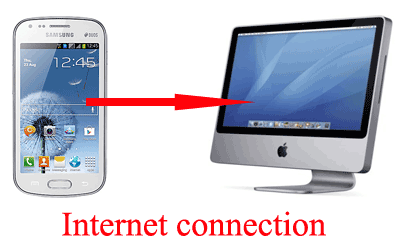
பிரபு;ஆண்ட்ராய்ட் மொபைல் டூ கம்ப்யூட்டர் இணைய இணைப்பு கொடுப்பது எப்படி? 

ஆண்ட்ராய்ட் மொபைலிலிருந்து கம்ப்யூட்டருக்கு இன்டர் நெட் இணைப்பு கொடுப்பது எப்படி என்பதைப் பார்ப்போம்.
நாம் சாதாரணமாக பயன்படுத்தும் மொபைல் போனிலிருந்து கணினிக்கு இணைய இணைப்பு கொடுக்க வேண்டும் எனில், அந்த மொபைல் போனிற்கு ஏற்ற இணைய இணைப்பு மென்பொருளைக் கொண்டு கணினிக்கு இணைய இணைப்பை கொடுப்போம்.

ஆனால் தற்போது புதிய மாற்றங்களுடன், புதிய தொழில்நுட்பத்துடன், பயன்படுத்த எளிமையாக இருக்கும் ஆண்ட்ராய்ட் வகை மொபைல்களிலிருந்து இணைய இணைப்பை ஏற்படுத்த இரண்டு வழிமுறைகள் உள்ளன.

1. wifi வசதி மூலம் கணினிக்கு இணைய இனைப்பை வழங்கு முடியும்.
2 . USB கேபிள் மூலம் இணைய வசதியை கணினிக்கு ஏற்படுத்த முடியும். usb மூலம் கணினிக்கு இணைய இணைப்பை (internet connection) ஏற்படுத்த, எந்த வகையான ஆண்ட்ராய்ட் மொபைல்(model of Android Mobile phone) உங்களிடம் உள்ளதோ அதற்கான யூ.எஸ்.பி. டிரைவரை உங்கள் கணினியில் நிறுவியிருப்பது அவசியம்.

  1. தேவையான யூ.எஸ்.பி. டிரைவரை (USB Driver) உங்கள் கணினியில் இன்ஸ்டால் செய்தவுடன் , உங்கள் ஆன்ட்ராய்ட் மொபைல் போனில் செட்டிங்ஸ் (settings) செல்லுங்கள். 
  2. செட்டிங்சை கிளிக் செய்தவுடன் தோன்றும் விண்டோவில் வைர்லெஸ் அண்ட் நெட்வொர்க்ஸ் (wireless & networks)என்பதில் கிளிக் செய்யுங்கள். 
  3. அடுத்து தோன்றும் விண்டோவில் டிதரிங் & போர்ட்டபிள் ஹாட்பாட் (Tethering & portable hotspot) என்பதை கிளிக் செய்யுங்கள்.
  4. அடுத்து யூ.எஸ்.பி. தெதரிங் (USB tethering)என்பதை தேர்ந்தெடுக்கவும். 
  5. அடுத்து தோன்றும் விண்டோவில் any ongoing operations such as media transfer, phone software update, backup and restore will be interrupted. என்று காட்டும். அதன் கீழாக அதை உறுதிப்படுத்தும் விதத்தில் OK கிளிக் செய்யுங்கள். 
அவ்வளவுதான். இனி உங்கள் கணினியில் நீங்கள் இணைய இணைபைப் பெற்று இருப்பீர்கள். கணினியின் மூலம் இணையத்தில் உலவ முடியும். ஆண்ட்ராய்ட் மொபைலிலிருக்கும் போட்டோக்களை (Photos) இந்த முறையின் மூலம் கணினிக்கு பகிர்ந்துகொள்ள முடியும்.

உங்களுடைய ஆண்ட்ராய்ட் மொபைல்களுக்கான USB Driver-களை தரவிறக்கம் செய்துகொள்ள கீழிருக்கும் சுட்டிகளைப் பயன்படுத்திக்கொள்ளுங்கள்.

ஸ்கிரீன் ரெக்கார்டிங் மற்றும் வீடியோ எடிட்டிங் சாப்ட்வேர்

  Posted by Prabu 😘 😘 


Screen Recording மற்றும் Video Editing செய்வதற்கு பல்வேறு மென்பொருட்கள் பயன்படுகின்றன.

அவற்றில் ஒரு சில மென்பொருட்கள் இலவசமாகவும், ஒரு சில கட்டண மென்பொருட்களாகவும் கிடைக்கின்றன.

சிறந்த டாப் டென் ஸ்கிரீன் ரெக்கார்டிங் மற்றும்வீடியோ எடிட்டிங் சாப்டவேர்கள் கீழே வரிசைப்படுத்தப்பட்டுள்ளன. தேவையானதை பதிவிறக்கம் செய்து பயன்படுத்திக் கொள்ளுங்கள்.

1. Evident wlp@

Ezvid என்பது ஒரு screen recorder program  ஆகும்.  இதன் மூலம் கம்ப்யூட்டர் ஸ்கிரீனில் நடைபெறும் இயக்கங்களை ரெக்கார்ட் செய்யலாம்.

  1. இப் புரோகிராமுடன் in-built video editor-ம் இணைந்துள்ளது.
  2. இதன் மூலம் ரெக்கார்ட் செய்த வீடியோவை, உங்களுடைய விருப்பத்திற்கேற்ப தேவையான இடங்களில் எடிட் செய்துகொள்ள முடியும்.
  3. வீடியோவை இருபகுதிகளாக பிரித்து, இடையே தேவையான இடங்களில் Text -ஐ சேர்த்துக்கொள்ளலாம்.
  4. slideshow effect களை உருவாக்கலாம்.
  5. இப்புரோகிராமின் மூலம்  உருவாக்கப்பட்ட videoக்களை YouTubeக்கு அப்லோட் செய்துகொள்ள முடியும்.
Ezvid screen recorder program  பதவிறக்கம் செய்ய சுட்டி:download Ezvid screen recorder program

2. BlueBerry FlashBack Express Recorder
இது ஒரு வீடியோ ரெக்கார்டர் மென்பொருள் ஆகும். இதன் மூலம் உங்களுடைய வெப் கேமைப் பயன்படுத்தி வீடியோவை ரெக்கார்ட் செய்துகொள்ள முடியும்.
ரெக்கார்டிங்கை நிறுத்தியவுடன் இது தானாகவே FBR கோப்பொன்றை உருவாக்குகிறது. இந்த வீடியோ கோப்புகளை, இதனுடன் இணைந்திருக்கும் வீடியோ எடிட்டரைப் பயன்படுத்தி  அவற்றை எடிட் செய்துகொள்ள முடியும்.

BlueBerry FlashBack Express Recorder program  பதவிறக்கம் செய்ய சுட்டி:downlaod BlueBerry FlashBack Express screen recorder program
3. Screenr
Screenr என்பது online வழியாக Screen Record செய்யப்பயன்படும் ஒரு மென்பொருள் ஆகும். உங்களுடைய கம்ப்யூட்டரில் மென்பொருளை நிறுவ தேவையில்லை.
இப்புரோகிராம் உங்களுடைய கம்ப்யூட்டரில் செயல்பட கண்டிப்பாக Java நிறுவியிருக்க வேண்டும். 

உங்களுடைய கம்ப்யூட்டர் திரையில் ரெக்கார்ட் செய்வதற்கான area -வைத் தேர்ந்தெடுத்துவிட்டு, ஸ்கீரீன் ரெக்கார்டிங்கை தொடங்கலாம்.
அதிக பட்சமாக 5 நிமிடங்கள் இந்த முறையில் ரெக்கார்ட் செய்ய முடியும்.

ரெக்கார்ட் செய்த வீடியோவை நண்பர்களுக்கு பகிர, லிங்க் கொடுக்கப்படும். தேவையெனில் MP4 ஆக எக்ஸ்போர்ட் செய்துகொள்ளலாம். அங்கிருந்தே Youtube -லும் அப்லோட் செய்துகொள்ள முடியும். ரெக்கார்ட் செய்யப்படும் வீடியோக்கள் உங்களுடைய அக்கவுண்டிலேயே சேமிக்கப்படும்.

Screenr Recorder program  பதவிறக்கம் செய்ய சுட்டி:download Screenr screen recorder program
4. Rylstim Screen Recorder
Rylstim Screen Recorder -ல் Start Record பட்டனை அழுத்தியவுடன் ஸ்கிரீன் ரெக்கார்டிங் ஆரம்பமாகிவிடுகிறது. கம்ப்யூட்டரில் ஏற்படும் நிகழ்வுகளை காட்சிப்படுத்திக் காட்ட இந்த ரெக்கார்டிங் மென்பொருள் உபயோகமாக இருக்கும். இதில் Audio Recording செய்வதற்கான வசதி இல்லை.
Rylstim Screen Recorder program  பதவிறக்கம் செய்ய சுட்டி:  download Rylstim Screen Recorder program

5. CamStudio
CamStudio வீடியோ எடிட்டிங் புரோகிராம் பல்வேறு வசதிகளை உள்ளடக்கியுள்ளது. மௌஸ் கர்சரை  enable அல்லது  disable செய்யும் வசதி, மைக்ரோ போன் அல்லது இந்த புரோகிராமின் மூலம் sounds Record செய்யும் வசதி மற்றும் ரெக்கார்ட் செய்யப்பட வேண்டிய ஸ்கிரீன் அளவினை நம் வசதிக்கு தகுந்தாறு மாற்றிக்கொள்ளும் வசதி என்பன போன்ற பல்வேறு வசதிகளை இப்புரோகிராம் உள்ளடக்கியுள்ளது.

CamStudio Recorder program  பதவிறக்கம் செய்ய சுட்டி:downlaod CamStudio screen recorder program

MKRdezign

Contact Form

Name

Email *

Message *

Powered by Blogger.
Javascript DisablePlease Enable Javascript To See All Widget